Auto Property Groups - Groups that build themselves
Hi there !
Property groups power a lot of Sparrow Intel. Filters, rules, scheduled reports and review widgets are all scoped by them. But building a group meant hand-picking properties, and keeping it current meant remembering to come back every time a listing was added, moved or re-tagged in your PMS.
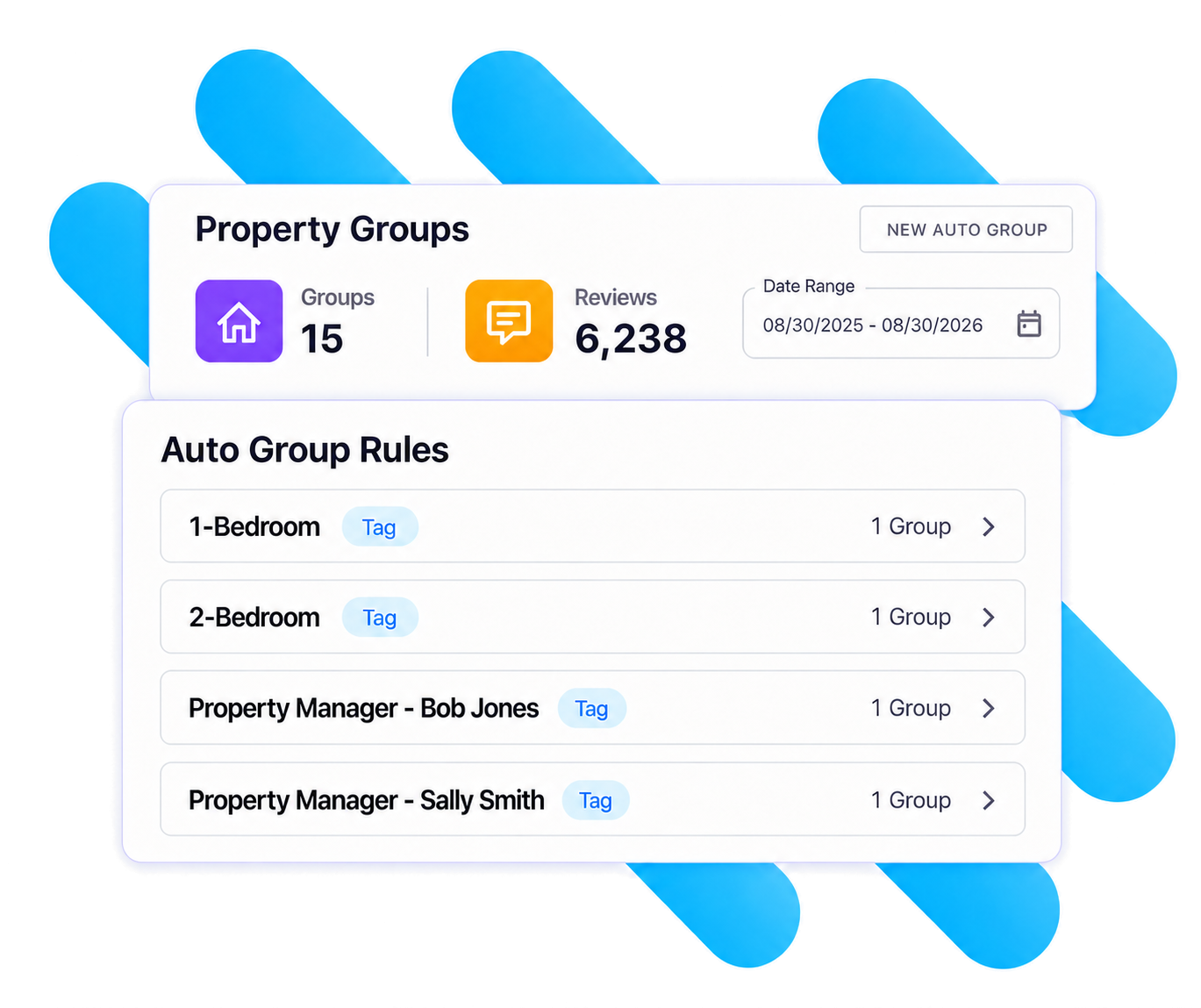
Today we're launching Auto Property Groups: groups that build and maintain themselves from your listing data. You choose what to group by; Sparrow Intel creates the groups and keeps their members up to date as your listings change.
Group by what already describes your portfolio
City, state/region, or both. Works with every connected PMS, using the address already on each listing. One group per market, created in a click. Choose "City + State/Region" when the same city name appears in more than one state or region.
Guesty custom fields and tags. Group by any custom field, either as a single group for one value or one group per distinct value. Or pick a tag to get a group of every listing carrying it.
Track custom fields, node hierarchy, unit roles and amenities. Group by unit custom fields like Brand, by any level of your node tree (one group per destination, for example), by who holds a unit role (one group per property manager), or by an amenity you use as a collection flag.
On a different PMS? City and state/region already work for you. If your PMS has fields or tags you'd like to group by the same way, reach out to us and tell us which. That's how we decide what to add next.
Set it once and it stays right
One group per value. A new value in your PMS becomes a new group automatically, so opening a new market doesn't mean another trip to Property Groups.
Membership follows your PMS. During your daily sync, properties that gain a city, field value or tag join the group, and properties that lose it leave.
Manual groups aren't going anywhere. Auto groups sit alongside the groups you build by hand. Delete a rule any time and choose whether to keep its groups as regular manual groups.
Getting started takes about a minute
Head to Property Groups in the sidebar and click New Auto Group.
Pick any property. It's only there to show you what you can group by and what its own values are. Choose a field, then "This value only" or "One group per value."
Check the preview and click Save. Your groups appear right away.
For the full walkthrough, including what each Track field maps to, see the Auto Property Groups help guide.
Log in and try it on your biggest market. If you'd like help mapping your PMS setup to groups, just reply to this email.
Want to learn more?
If you'd rather walk through it together, or catch up on any of the other features we've recently released, book time with us. We'll help you set up your first auto group rules before the call ends.
P.S. Auto groups also work in Conversations and Chirp AI Voice. More on that soon, but if you'd like to learn about Conversations and Chirp AI Voice now, talk to us here.